

Clock Web Terminal Configurator
Click the button to connect to the clock and select the serial port that your clock is connected to — usually, this is “USB Serial (COMx)”.
Important: This configurator works only with firmware version 2.x and later. Please update your clock’s firmware before using this configurator.
Connecting to Your Clock:
Connect your clock to your computer using a USB cable, then click the Connect to Clock button at the top of this page. In the dialog that appears, select USB Serial (COMx), then click the Connect button in the same dialog.
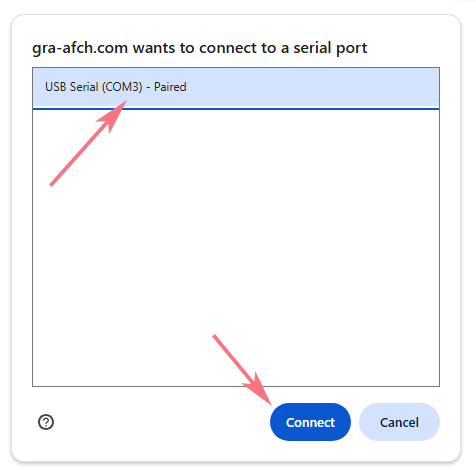
If you see several devices with this name, try them one by one. You’ll know you’ve found the right device when the Clock Service Menu appears on a black background.

If your clock does not appear in the list, or the list is empty, you may need to install the USB driver.
Using the Service Menu
The Service Menu displays all available clock settings and their current values. Each setting is identified by a letter or number shown before its name. Enter the corresponding letter or number in the input field and press Enter or click Send to change that setting. Sending the same command again will cycle through the available values.
Your changes will not be applied or saved permanently until you send the S command (uppercase or lowercase).
For example, if the Slot Machine Effect is enabled and the user sends command 1, the Slot Machine Effect will be disabled. If the user sends 1 again, the Slot Machine Effect will be enabled again:
